Last Updated: Mar 2026
Introduction
This Cookie Policy explains how we use cookies and similar technologies on our website. It describes what these technologies are, why we use them, and your rights to control their use.
1. What Are Cookies?
Cookies are small text files that are placed on your device when you visit a website. They help websites function properly, improve user experience, and provide analytical insights.
Cookies may be:
- First-party cookies (set by our website)
- Third-party cookies (set by external services)
2. Why We Use Cookies
We use cookies and similar technologies to:
- Ensure proper website functionality
- Analyze traffic and user behavior
- Improve performance and usability
- Deliver relevant marketing and advertising
3. Types of Cookies We Use
We categorize cookies as follows:
3.1 Necessary Cookies
These cookies are essential for the operation of the website and cannot be disabled. They enable core functionalities such as security and accessibility
3.2 Analytics Cookies
These cookies help us understand how visitors interact with our website.
Examples:
- Google Analytics
- Microsoft Clarity
3.3 Advertising Cookies
These cookies are used to deliver relevant advertisements and track campaign performance.
Examples:
- Meta Pixel (Facebook)
3.4 Functional Cookies
These cookies enable enhanced functionality such as remembering preferences and improving user experience.
4. Third-Party Cookies and Technologies
We use third-party services that may place cookies on your device, including:
- Google Analytics
- Microsoft Clarity
- Meta Pixel
These third parties may collect data such as:
- IP address
- Device information
- Browsing behavior
Each third party processes data according to their own privacy policies.
This policy should be read alongside our Privacy Policy.
5. Legal Basis for Using Cookies
We rely on user consent as the legal basis for processing non-essential cookies in accordance with:
- General Data Protection Regulation (GDPR)
- California Consumer Privacy Act (CCPA/CPRA)
Non-essential cookies are only activated after you provide consent.
6. How You Can Control Cookies
You can manage your cookie preferences at any time by:
- Clicking the “Cookie Settings” link on our website
- Accepting or rejecting non-essential cookies via the banner
Additionally, most browsers allow you to control cookies through their settings.
7. Global Privacy Control (GPC)
We recognize Global Privacy Control (GPC) signals sent by compatible browsers.
When a GPC signal is detected:
- We treat it as a request to opt out of the sale or sharing of personal data
- We automatically disable non-essential cookies and tracking technologies
8. How We Handle Consent
When you visit our website:
- Non-essential cookies are blocked by default
- You are presented with options to:
- Accept all cookies
- Reject all cookies
- Customize preferences
Your consent choices are stored and respected across sessions.
9. Cookie List
Below is a representative list of cookies used on our website:
| Cookie Name | Purpose | Duration | Category |
|---|---|---|---|
| _ga | Google Analytics tracking | 2 years | Analytics |
| _gid | Google Analytics session tracking | 24 hours | Analytics |
| _fbp | Meta Pixel tracking | 3 months | Advertisement |
| _clck | Microsoft Clarity tracking | 1 year | Analytics |
| cookieyes-consent | Stores user consent preferences | 1 year | Necessary |
(Note: This list may be updated periodically based on active tracking technologies.)
10. Data Sharing and Processing
Some cookies involve data sharing with third-party providers. These providers may process data on our behalf for analytics, performance, or advertising purposes.
For more details, please refer to our Privacy Policy and Subprocessors section (if applicable).
11. Updates to This Cookie Policy
We may update this Cookie Policy from time to time to reflect:
- Changes in technology
- Legal requirements
- Updates to our data practices
We encourage you to review this page periodically.
12. Contact Information
If you have any questions about this Cookie Policy or how we use cookies, please contact us via our website.
How to delete a Cookie from Browser?
A Cookie is a small piece of information that is stored on a user’s browser when someone visits any particular website. In other words, cookies are messages or a small piece of data that your server passes to your web browser when you visit sites. Your browser stores each message in a small file called ‘cookie.txt’. which helps to give you a better surfing experience. Cookies are generally harmless. To learn more about cookies, check this Wikipedia page.
The following procedures apply for different browsers and the settings may vary as per Browser ( browser specific ).
Chrome Browser:
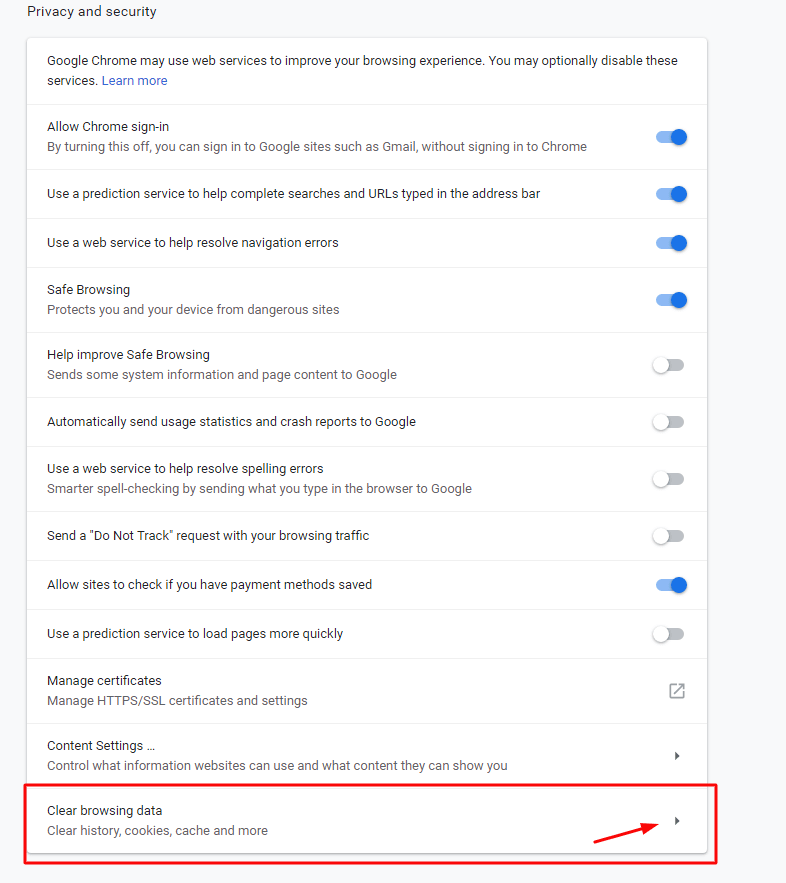
In Chrome, You can click on the 3 small gear icons present in the top-right corner of
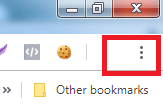
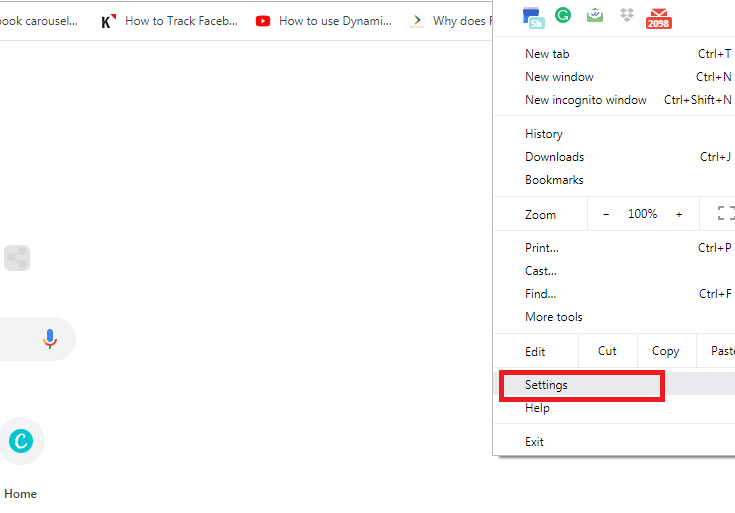
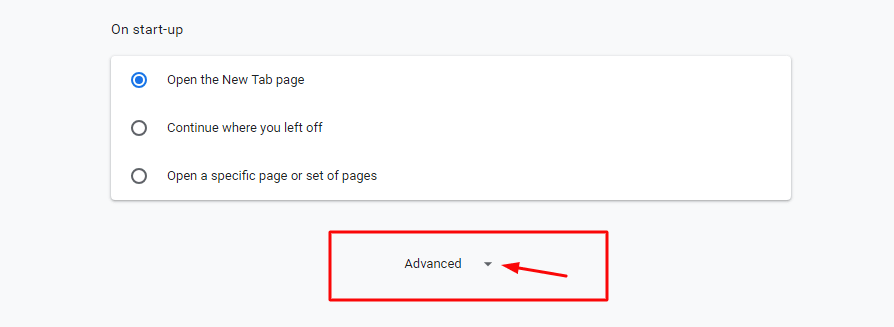
your browser. Then from the Dropdown click on the ‘Settings’ > Advanced > then go to the very bottom of the ‘Privacy Settings’ Section ( as shown in the image), click on the ‘Clear Browsing Data’ option. A
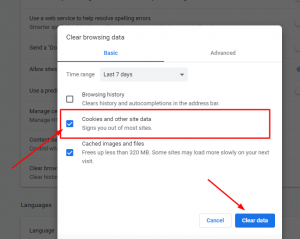
 pop-up screen will open up ( as shown below)with the default checkmark on the ‘Cookies and other site data’ & ‘Cached Images and Files’ options by default. If you want, you can check mark the Browsing History option as well and it will clear everything when you hit the ‘Clear Data’ button.
Note: A shortcut way to clear your Browsing data in Chrome is to press ‘Ctrl + H’ from your keyboard (Windows) and from the left side you will see that below the History, a menu option shows to ‘Clear Browsing Data’. Click on it and you will get the same Pop Up mentioned above. Click on ‘Clear Data’
Firefox Browser:
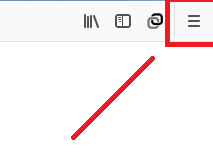
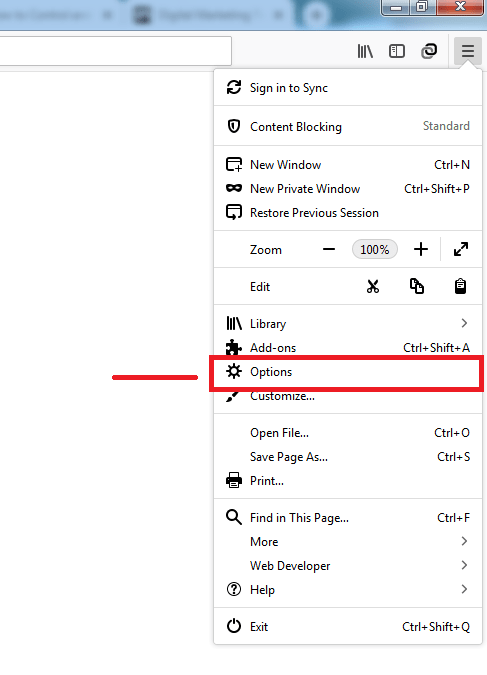
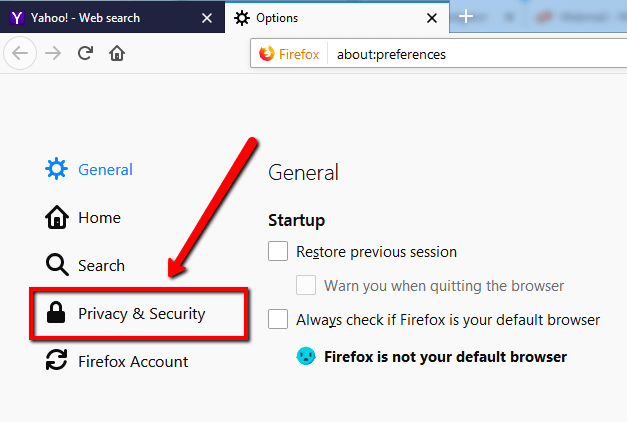
In Firefox, You click on the list tray icon on the top – right corner of your browser. Then from the Dropdown click on the Options > Privacy & Security (from left menus). Scroll down to the
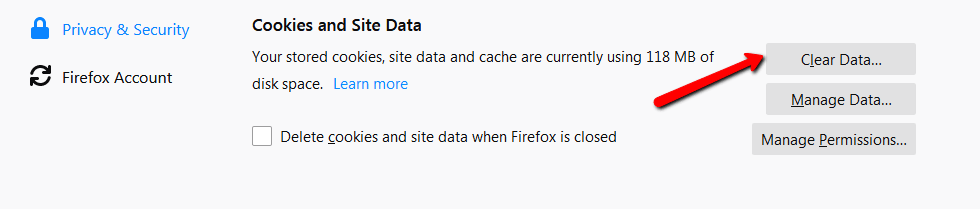
section named ‘Cookies and Site Data’. Here, you can click on the ‘Clear Data…’ option to clear the data
and a pop-up screen will show up with the default check marks in the ‘Cookies and Site Data’ option and ‘Cached Web Content’ section. Finally, upon clicking on the ‘Clear’ button it will delete all the data.
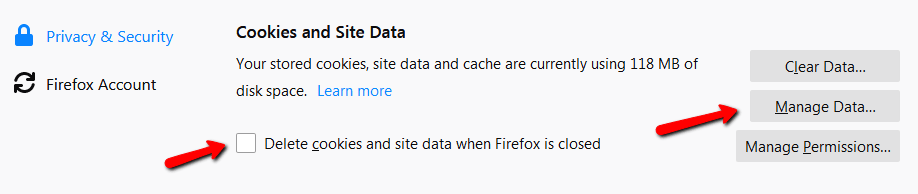
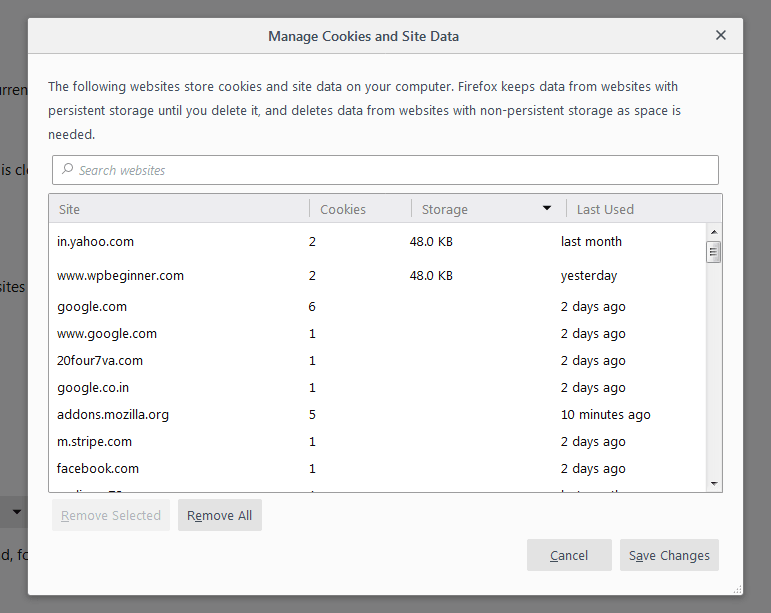
Note: You can also click on the checkbox where it states, ‘Delete cookies and Site Data once Firefox is deleted’ and it will not store anything. Another option is that you can click on the ‘Manage Data’ button and you can manually select and remove the sites which you want to remove and the sites which you don’t want. This is a manual process and you need to select & remove manually as per your choice.
Safari (Mac):
On Safari, you can press Command+, (Command + Comma) and a page like this will open up. There you press the ‘Privacy’ Tab and then will find a pop up with different websites with their data
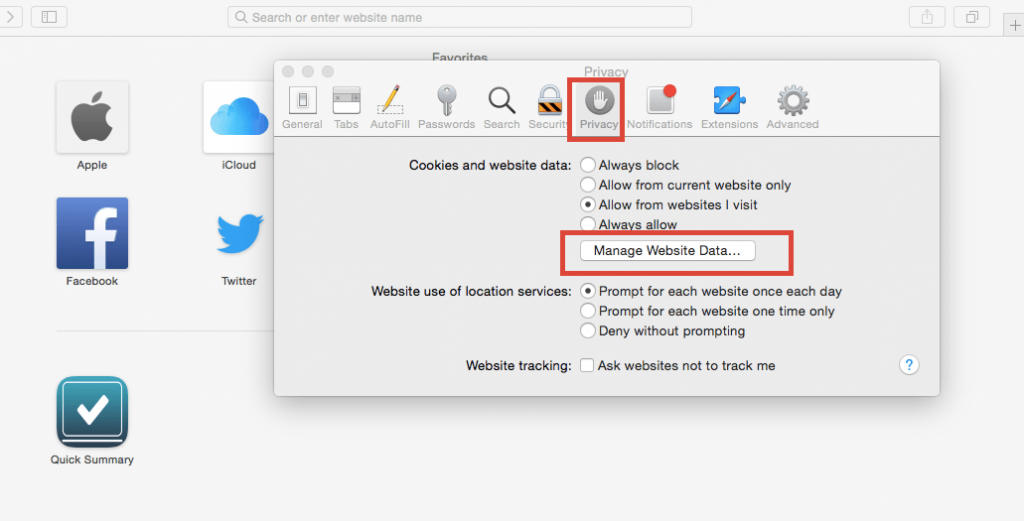
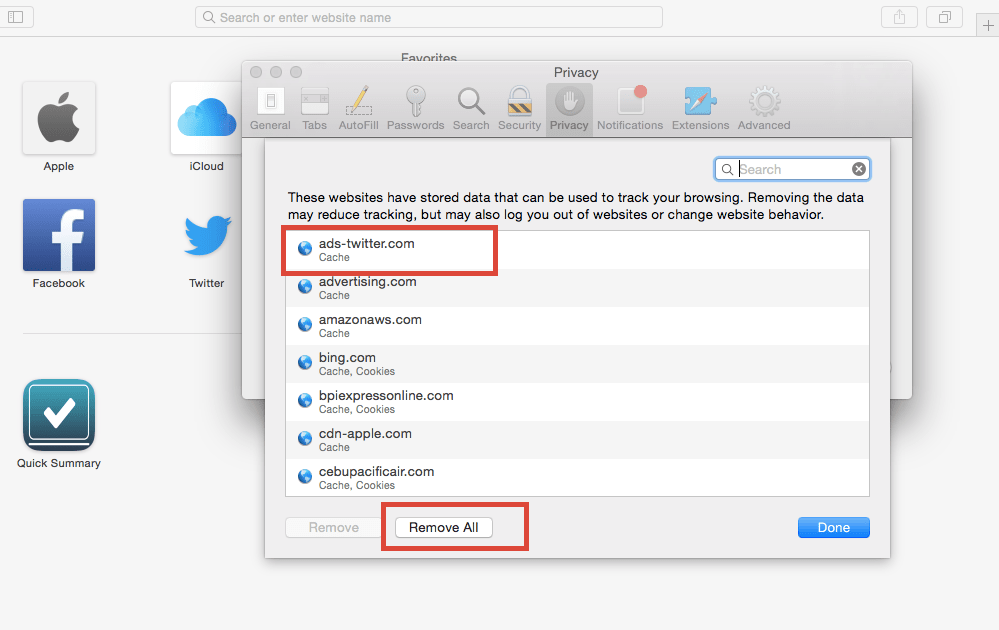
stored. You can either select them one by one as per your choice and remove the sites for which you don’t want to store the cookies, cache, etc or you can press the ‘Remove all’ button and clear out all your cookies and stored data from the browser.
Note: You can alternatively click on the ‘Preferences’ section and go to the above options page.
Internet Explorer:
Click on the Middle Menu Bar from the top right corner of the IE Browser and select ‘Safety’. Select the top from Option ‘ Delete Browsing History’ as shown in the following image
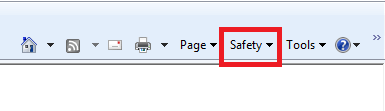
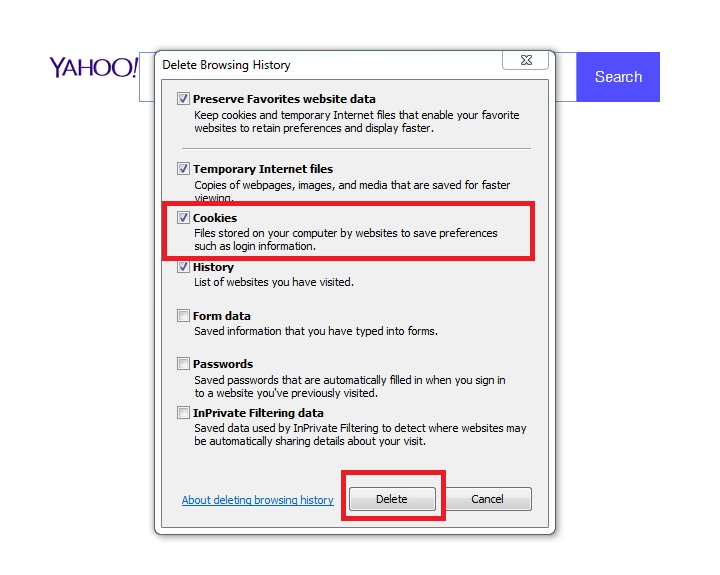
A pop-up bar will open up and you need to select the ‘Cookies’ option and press ‘Delete’ button. Your browser’s cookies will be deleted until you visit the site(s) for the next time.